
Security keys: protecting your accounts from fake login pages
A fake login page can steal a password and a temporary code. How does a FIDO security key resist this attack, and how do you set one up without losing access to your accounts?
 Getting started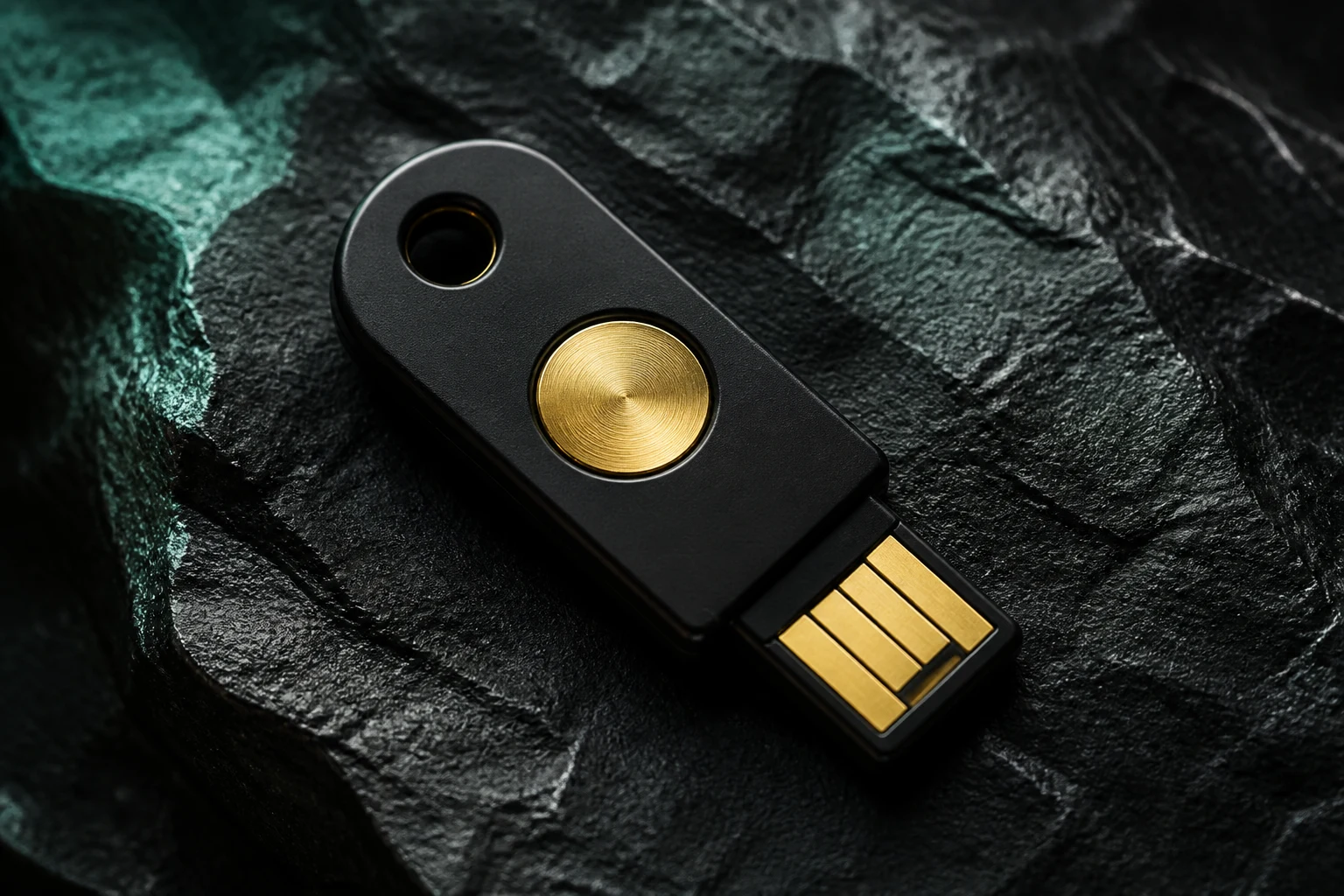
Original AI-generated illustration · SecuFocus
At a glance
Key points
A FIDO-compatible security key can authenticate a sign-in without handing the website a reusable secret. Its relationship to the expected website provides phishing resistance. Account compatibility and a prepared recovery route remain essential.
Faced with a fake login page
Imagine a carefully copied sign-in page. You enter your password and then the requested six-digit code. An intermediary may try to relay those details to the real service while they remain valid. A second factor still helps, but a transferable code does not solve every phishing problem.
With WebAuthn and a compatible authenticator, the sign-in uses a cryptographic proof linked to the expected website. The browser checks that context instead of leaving the decision entirely to your assessment of a logo and layout. This is the change that makes security keys interesting.
What passes between the key and the service
During registration, the service stores a public key. During sign-in, it sends a challenge and checks the authenticator’s signed response. The private key used for that proof is not handed to the service as a password would be.
The mechanism does not remove the need to understand your actions. A correctly authenticated session may still lead to a deceptive request: granting excessive access, sending a document to the wrong recipient or approving a payment you misunderstood. The key protects one part of the journey.
A passkey is not necessarily a USB device
A passkey can be synchronised by a provider or remain bound to a device. A compatible physical security key can hold a passkey bound to that key. The terminology therefore covers both a sign-in method and different ways of retaining its secrets.
The consequences are practical. Who makes it available on a new device? What happens if you lose the account that synchronises your passkeys? Can you use it on the computer available while travelling? Answer these questions before turning a technical preference into a rule for every account.
Scroll the table sideways to read every column.
| Option | Practical appeal | Recovery to prepare |
|---|---|---|
| Synced passkey | Available across compatible devices | Access to the synchronisation account and ecosystem |
| Physical key | A separate object you can carry | Another registered method, such as a second key |
| Temporary code | Commonly supported by services | Backup or recovery appropriate to the authenticator |
Before buying, check accounts and connectors
A product page cannot answer on behalf of your services. Make a small matrix: your email, password manager and other main accounts; beside each, the accepted authentication method and the devices you sign in from.
Check connectors and communication methods, such as USB-C or NFC. Also check whether the service accepts several keys and uses them as a second factor or for passwordless sign-in. Two features filed under “security” may involve different procedures.
Start with one important compatible account, then expand. Buying several devices before checking the sign-in flows adds hardware without proving you will be able to use it when needed.
Register the key and check your backup
For a compatible personal account, this is the order we favour. Exact labels depend on the service; its documentation remains the reference for registration and recovery.
- Open security settings from the service’s official address. Confirm that you still have a usable sign-in method.
- Register the first key and give it a name that identifies the physical object.
- Register an allowed fallback method. If it is a second key, add it separately: purchasing a spare does not automatically register it.
- Try a fresh sign-in with each method while keeping your last accessible session open.
- Keep the fallback in a separate place. Two keys on one keyring disappear together if you lose it.
The recovery route can become the attack route
Adding a strong method does not necessarily strengthen every other one. Review what remains enabled: email recovery, phone numbers, backup codes or support intervention. Their roles depend on the service, and some options are mandatory.
Before removing a fallback method, check what would remain if you lost the key. Keep an accessible backup and know the service’s recovery procedure. Some enhanced-protection programmes have specific recovery rules: read them before enrolling.
Attacks a security key cannot stop
A key does not stop malware reading what appears on a compromised device. Nor does it guarantee the security of an already open session or the service’s internal procedures. These limits do not remove its value; they show where other work remains.
Start with your main email account if it supports a FIDO key: it often controls password resets for your other accounts. Register a backup sign-in method, check that it works, then keep it somewhere other than the bag that holds your everyday key.
Check and explore
Sources for this article
Numbers connect each reference to the passages that use it. Dates show when the documentation was consulted.
- MDN: WebAuthn, public keys and website context ↗developer.mozilla.org ·
- FIDO Alliance: synced and device-bound passkeys ↗fidoalliance.org ·
- Google: keys and recovery in Advanced Protection ↗support.google.com ·
This article draws on the sources above. The exercises are for you to try on your devices; SecuFocus does not present them as tests carried out by its editorial team. Interfaces and features can change. Method and corrections.
Cite this article
Keep this reference with the article when you save or share it.