
What does a home firewall actually protect?
A home firewall: incoming connections, smart devices, IPv6 and self-hosted services. What it protects, what it misses and what to check.
 Getting started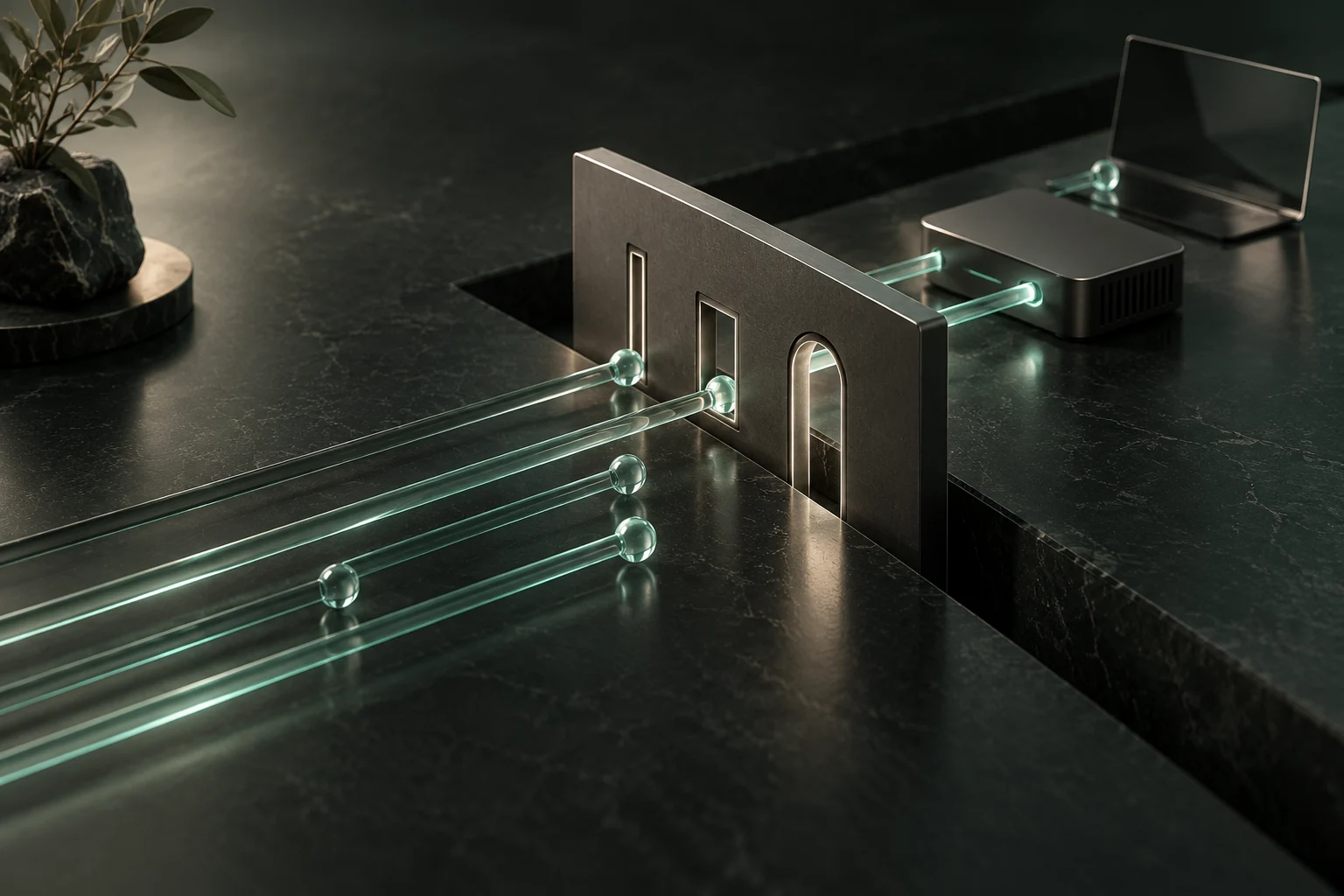
Original AI-generated illustration · SecuFocus
At a glance
Key points
A forgotten file share can leave a computer accessible to other devices on the network. A firewall limits who can connect and under what conditions. The router protects one boundary; the computer’s firewall still matters inside that boundary and when you take it elsewhere. Protection depends on the rules, their exceptions and the paths traffic actually takes.
The problem can start in the living room
A new smart camera joins the Wi-Fi, a visitor brings a laptop and the family NAS holds your photos. On a single network, these devices may be able to contact one another directly. Sitting behind the same router does not mean they all deserve the same access. If a service accepts connections and no rule stops them, a compromised device has another opportunity to reach its neighbours.
A firewall reduces those opportunities. It can keep an Internet connection away from a file share, restrict NAS administration to your computer or separate visitors’ devices. It does not repair a vulnerable service; it limits who can reach it. That matters when an update is late or an application has enabled a feature you forgot about.
What a rule decides
A rule checks specific properties: network interface, source address, destination, protocol and port. On a computer, it may also target an application. Ports identify services: TCP 443 commonly carries HTTPS and TCP 445 carries SMB file sharing. Allowing a port does not establish the identity or trustworthiness of the software using it.
A stateful firewall tracks exchanges. When your browser opens an allowed HTTPS connection, responses can return as part of that connection. This does not require allowing arbitrary Internet hosts to start new connections to your computer. The distinction between an expected reply and a new inbound connection is why browsing can work while unsolicited inbound access is blocked.
Exceptions tend to accumulate. A rule created for an experiment should have a clear name, a limited destination and a reason that still applies. An “allow everything” rule often solves the immediate problem by removing the boundary you wanted to establish.
Router and computer: two useful positions
The router’s firewall checks traffic that crosses it. Two devices on the same local network may communicate without crossing that boundary. This is one reason to keep the computer’s firewall enabled at home. On hotel Wi-Fi, that protection also travels with your laptop; your home router does not.
A firewall between network segments adds another boundary. It can allow a camera to reach its cloud service while denying access to your computers. That requires actual separate segments and rules on the path between them.
| Position | Role and limitation |
|---|---|
| On the router | Control the Internet boundary. May not see direct exchanges between devices on the same local network. |
| On the computer | Restrict access to that device’s services and, depending on the tool, applications’ outgoing connections. |
| Between separate networks | Define access between computers, guests and smart devices. Requires consistent router, Wi-Fi and sometimes switch configuration. |
A private address is not a security policy
With IPv4, NAT often translates household private addresses into one public address. The absence of an inbound mapping prevents many direct connections. Address translation and filtering are still different functions. A port forward, an automatically created opening or a router service can change what is exposed.
With IPv6, a device can have a globally routable address without being freely reachable from the Internet. Router and device filtering still determine access. Check both IPv4 and IPv6: a successful check in one address family proves nothing about the other. Disabling IPv6 everywhere can hide an overlooked configuration rather than resolve it.
Be careful with blanket ICMPv6 blocks. IPv6 uses this protocol for essential functions, including neighbour discovery and packet size adjustment. Use the appropriate rules for your equipment instead of copying an old IPv4 tutorial’s blanket denial.
Seeing a connection does not mean reading its contents
An application sending telemetry over HTTPS can pass through a firewall. Outgoing traffic is often allowed by default, while encryption prevents an ordinary network filter from reading the exchanged data. Windows allows outbound connections unless a rule blocks them. The built-in macOS firewall focuses on inbound connections.
Per-application outbound control can be more selective, at the cost of ongoing decisions and possible breakage. An IP address shared by several services is a poor shortcut for blocking one feature. Pi-hole or AdGuard Home may make blocking some tracking domains easier, but neither covers every collection path.
A firewall does not automatically recognise a phishing form on an allowed connection. Nor does it revoke permissions already granted to an application. Aim for an observable improvement, such as keeping a device away from the NAS, rather than a promise of complete privacy.
Start with the protection already installed
On Windows, open Windows Security, then Firewall & network protection. Check the active profile and firewall status. Keep the private profile for networks you trust; a network you are merely visiting should remain public. Review allowed applications, especially exceptions left over from an earlier troubleshooting session.
On macOS, open System Settings, Network, then Firewall. Options let you manage applications and services accepting incoming connections. Also review enabled sharing features. Stopping an unnecessary service is preferable to keeping an exception nobody can explain.
If an application stops working, identify the missing connection. Disabling the entire firewall for a printer or a game turns a local problem into broader exposure. An exception limited to the required service and home network is generally easier to understand and later remove.
Five checks on the router
Open the router’s administration interface from your network and save its configuration before changing access. Menus vary by manufacturer; these checks describe the intended result rather than a universal sequence. If a setting also supports an ISP service, consult that provider’s documentation before disabling it.
- Check that unsolicited inbound traffic is filtered for both IPv4 and IPv6.
- Review port forwards. Each opening should correspond to an identified, maintained service you still need.
- Review automatic UPnP or PCP mappings if supported. Remove obsolete requirements and test affected consoles or applications after a change.
- Avoid using “DMZ host” for a computer or NAS as a troubleshooting shortcut. On many home routers this forwards inbound traffic broadly to that host; it does not create an isolated network.
- Keep router administration off the Internet unless there is a specific need. Remote access needs explicit authentication, maintenance and access boundaries.
Separate guests and smart devices
A Wi-Fi network named “Guest” is not proof of isolation. Using your own device on that network, check that Internet access works and that your NAS administration interface remains unreachable. Review access point options too: isolating wireless clients from one another and blocking access to the main network are different controls.
With VLANs, a compatible switch and access point, you can separate computers, guests and smart devices. The firewall then permits the required exchanges. Precision comes with work: printer discovery, casting and home automation may require exceptions or a carefully limited discovery relay.
The example below describes an intended policy. Actual addresses, ports and requirements need verification before applying it; this is not an importable configuration.
| Connection | Intended policy |
|---|---|
| Guests to the NAS | Deny new connections. |
| Devices to the local DNS filter | Allow required DNS access without allowing access to its administration interface. |
| Administration computer to the NAS | Allow only the management services in use. |
| Smart devices to computers | Deny by default, then document essential exceptions. |
Self-hosting: check published ports
Installing a container does not make it private. On Linux, Docker creates rules for bridge networks and published ports. Its documentation warns that traffic to published ports can be diverted before the chains used by ufw. A reassuring ufw rule alone therefore does not establish that your service is unreachable.
After starting a service, check its listening address and access from another authorised device. A host-only service can often bind to the loopback address; a shared service needs deliberate exposure. Do not globally disable Docker’s firewall management as a shortcut: doing so can break container networking or introduce other openings.
Check the result and keep a way back
Test one change at a time. Reaching your own service over a phone’s mobile connection takes a different path from home Wi-Fi. Failure can also come from incorrect DNS, carrier NAT or a stopped service. Compare the result with rules and logs before attributing it to the firewall. Do not expose a service solely to conduct a test.
Some established connections may continue after a rule change because their state still exists. Repeat the check with a new connection. Avoid remotely clearing the entire state table without understanding the consequences: it may disconnect your own session.
Keep a configuration copy and a local recovery method. A “blocked” log entry records a filtering decision, not necessarily a targeted attack. Recording exceptions and periodically reviewing openings is more useful than watching a counter increase.
Do you need dedicated hardware?
For many households, the router and device firewalls, maintained software and a properly isolated guest network provide a useful starting point. Dedicated equipment becomes worthwhile when the router cannot provide the separation you need, several networks require precise access rules or you want to administer those choices yourself.
A system such as OPNsense offers that control, with time required for rules, configuration backups, updates and troubleshooting when the household connection depends on it. Sophisticated hardware helps little when nobody understands its exceptions. Choose a setup you will still be able to explain and repair in six months.
A DNS filter can complement this setup by blocking some advertising and tracking lookups. These tools act at different points and do not replace each other.
Frequently asked questions
Practical questions
Does a firewall stop an allowed app from collecting data?
Not necessarily. An allowed HTTPS connection can carry data to the service. An ordinary firewall does not know everything inside that exchange. You still need to review the app’s permissions and data collection settings.
Read more: Seeing a connection does not mean reading its contents- Microsoft: Windows Firewall ↗
- Apple: the macOS firewall ↗
- AdGuard Home: troubleshooting and DNS filtering limitations ↗
Why check ports after installing a Docker service?
A published port can expose a service beyond its container. Docker’s network rules can also take a different path from the one you expect with UFW. Check the listening address and actual access from another device on your network.
Read more: Self-hosting: check published ports #Link to this answerCheck and explore
Sources for this article
Numbers connect each reference to the passages that use it. Dates show when the documentation was consulted.
- IETF RFC 6092: residential IPv6 filtering ↗datatracker.ietf.org ·
- IETF RFC 4890: filtering ICMPv6 ↗rfc-editor.org ·
- Docker: packet filtering and firewalls ↗docs.docker.com ·
This article draws on the sources above. The exercises are for you to try on your devices; SecuFocus does not present them as tests carried out by its editorial team. Interfaces and features can change. Method and corrections.
Cite this article
Keep this reference with the article when you save or share it.