
Your home network: follow a connection’s journey
Wi-Fi, routers, DNS and guest networks: map what happens at home and know where to look when something stops working.
 Going deeper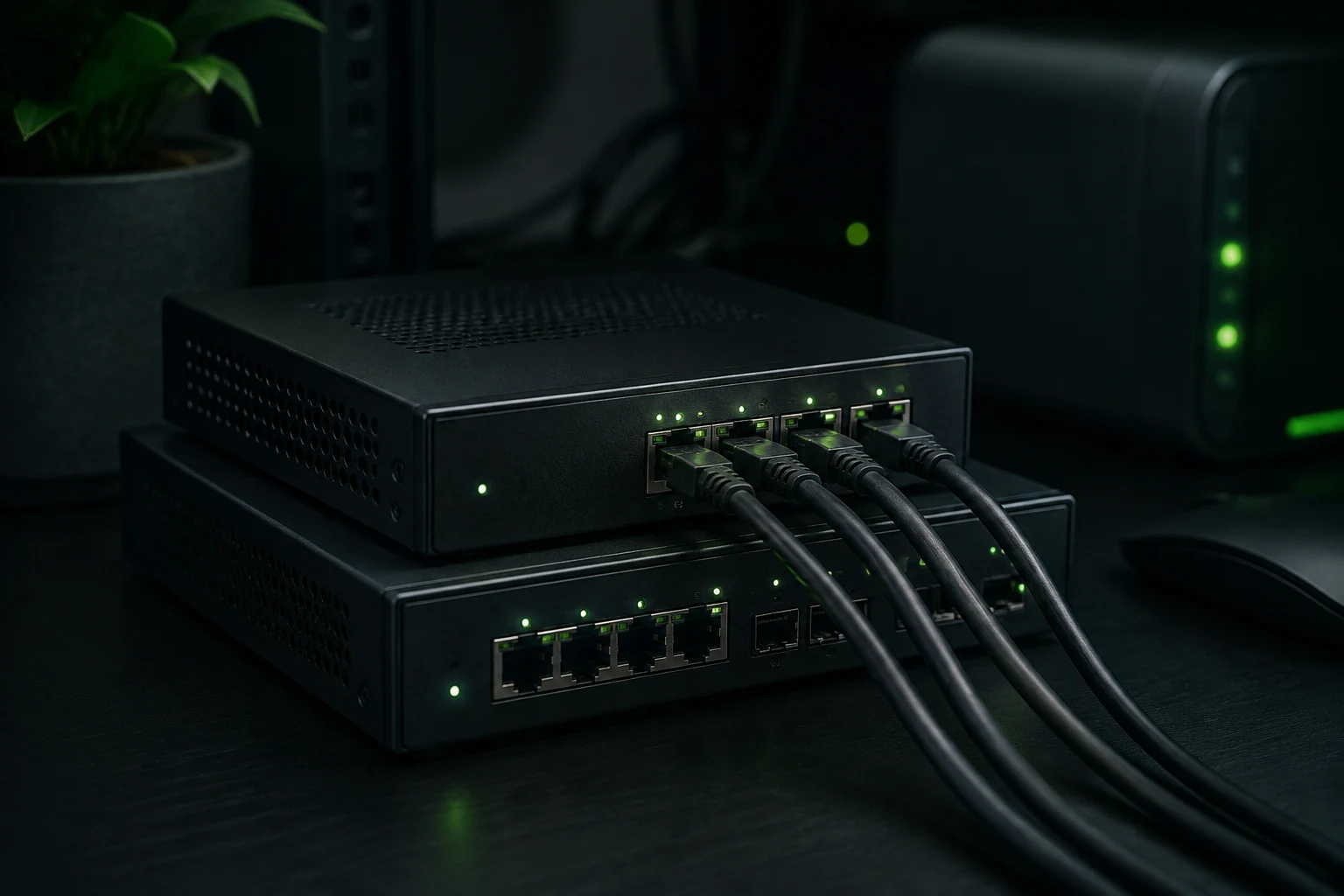
Original AI-generated illustration · SecuFocus
At a glance
Key points
Wi-Fi connects a device to the local network; a router connects networks; DNS helps locate a named service. Understanding these roles separately helps you locate failures and isolate devices that do not need to communicate.
What your internet router does
When the internet stops working, people often say the Wi-Fi is broken. Yet a phone may be connected correctly to the access point while the outside connection is down. The Wi-Fi icon confirms a local link, not everything beyond it.
A home gateway often combines several functions: the provider connection, routing, switched Ethernet ports and a wireless access point. Other setups distribute these across separate devices. Draw the functions before getting lost in product names.
A map that fits on one sheet
Start with what you own: the gateway, any additional router, Wi-Fi access points, a switch, computers, phones, printer and network storage. Draw wired and wireless connections differently. Add easily forgotten devices: television, smart gadgets and cameras.
The IPv4 addresses below are illustrative. Do not copy them into your configuration: your network may use different address ranges as well as IPv6.
Scroll the table sideways to read every column.
| Equipment | Example address | Role in this diagram |
|---|---|---|
| Router | 192.168.10.1 | Gateway to other networks |
| Computer | 192.168.10.24 | Device initiating the connection |
| Network storage | 192.168.10.50 | Local destination for files |
| Local network | 192.168.10.0/24 | Address range used in this example |
Local storage and the web take different paths
In this example, the computer and storage are on the same local network. A file copy can travel through the switch and access point without going out to the internet. The router becomes involved when the destination is on another network.
Opening a named website also requires an appropriate address. DNS provides that resolution. A device may use a resolver specified by the network, operating system or application. Resolution failure can therefore resemble an internet outage even while connectivity exists.
DHCP often supplies local configuration automatically. In practice, identify the equipment doing that job. Two devices unintentionally distributing incompatible settings can produce confusing symptoms.
Locate a fault, step by step
Change one variable at a time. Restarting the gateway, changing DNS and reinstalling the browser together teaches little when service returns. First establish the scope: one device, one service or the whole household?
- Check that the device is on the expected network. A phone that switches to mobile data is no longer testing the same connection.
- Inspect its local address, gateway and DNS settings. Compare them with a working device without copying that device’s IP address.
- Try a known local resource if you have one. This helps separate an internal problem from an external-access problem.
- Try several ordinary services. One unavailable website does not establish a complete internet outage.
- Check the outside connection’s status in the gateway’s official administration interface. Note the time and symptom before changing anything.
Check what the guest network actually separates
The word “guest” does not describe an isolation policy by itself. Equipment and settings determine whether visitors can reach local devices or communicate with each other. Read the documentation for your model and observe the result using your own devices.
A useful check is to connect a test device to the guest network and try reaching a non-sensitive local resource you control. Internet access should work if intended; access to personal storage should match your policy. Discovery features such as printing and media casting may also be affected.
Write a simple rule for each group: guests can reach the internet; smart devices cannot initiate connections to storage. Whether you can enforce those rules depends on the equipment and firewall.
What you make reachable from outside
List port forwards and remotely accessible services. Each should have a current purpose and an owner, even when that owner is you. A rule created for an experiment two years ago should not survive through forgetfulness.
For IPv6, consider firewall rules as well: the reasoning goes beyond IPv4 port forwarding. If these concepts are new, begin by reading the status and saving the configuration before changing it. Understanding your setup is better than applying instructions meant for another router.
For remote access to a personal service, examine the developer’s documented options. Access to a photo library, for instance, should account for authentication, encrypted connections and updates to the exposed service.
Keep your network diagram up to date
Keep one page with the map, equipment roles, how to find administration and the date of the last change. Store secrets separately in an appropriate place. This saves you rediscovering the network during every incident.
Poor Wi-Fi coverage, a slow transfer between two computers and an internet outage have different causes. Identify yours before buying an access point or a router. Your diagram will help you locate the problem and explain it to someone else.
Check and explore
Sources for this article
Numbers connect each reference to the passages that use it. Dates show when the documentation was consulted.
- Immich: a documented remote-access example ↗docs.immich.app ·
This article draws on the sources above. The exercises are for you to try on your devices; SecuFocus does not present them as tests carried out by its editorial team. Interfaces and features can change. Method and corrections.
Cite this article
Keep this reference with the article when you save or share it.